08 · Dashboard
Dashboard
Read overall status and spot anomalies on the console first screen. All you do here is read and navigate.
Applies to the kit and the Free edition
Before you start
Reading the screen#
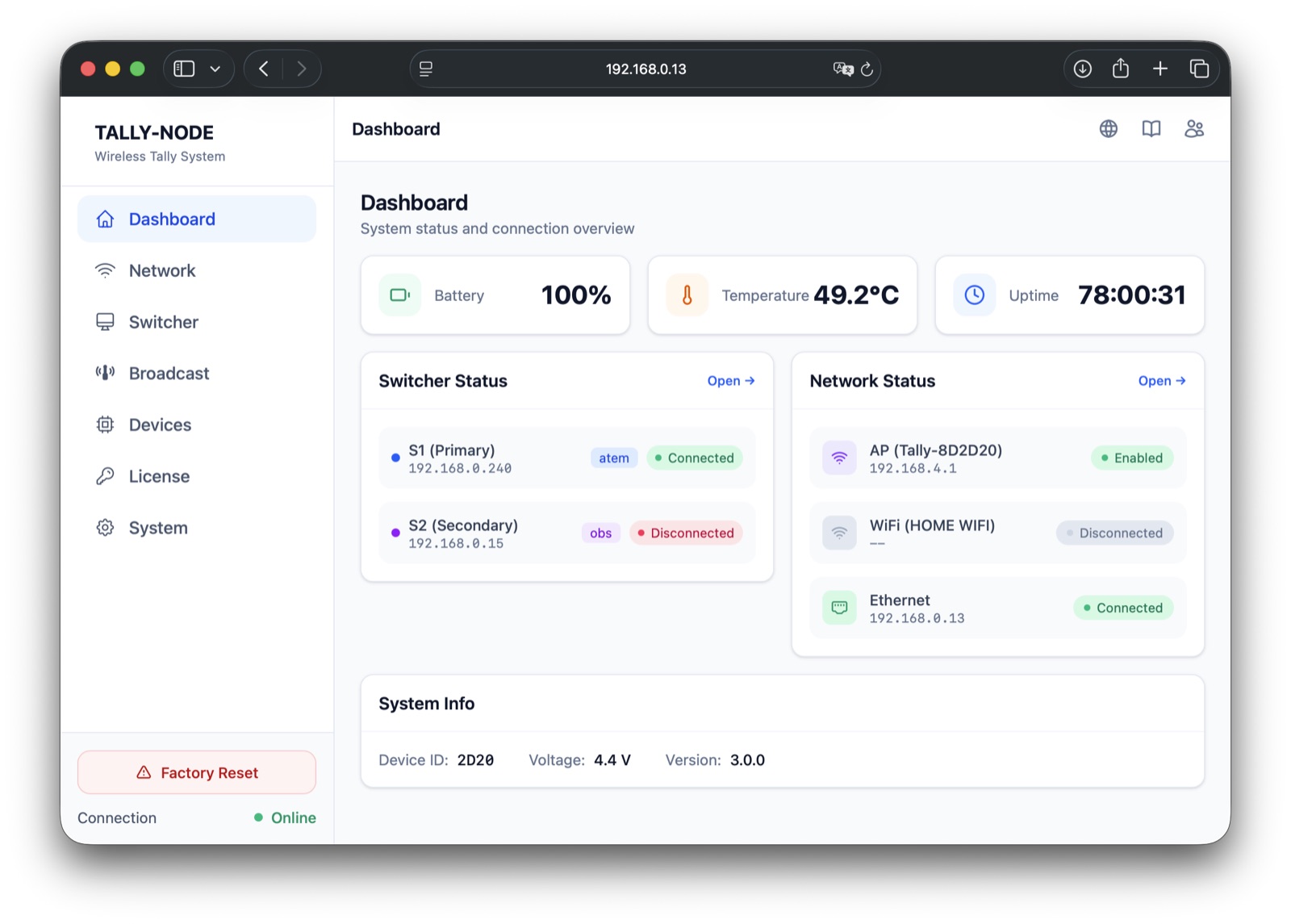
| Area | Shows | How to read |
|---|---|---|
| Three tiles | Battery · Temperature · Uptime | Charge, board temperature, uptime (read-only) |
| Switcher Status | Per-slot IP, type badge, connection pill | Connected (green) is healthy; Disconnected → Open → Switcher screen |
| Network Status | AP, WiFi, Ethernet rows | Per-path health from each status pill |
| System Info | Device ID · Voltage · Version | Identifier, battery voltage, firmware version |
The four Ethernet states:
| Display | Meaning | Next step |
|---|---|---|
| Connected (green) + IP | Link up | Use as is |
| No Link (gray) | Cable or peer problem | Check cable and the other end |
| Not Detected (orange) | Chip not detected | Inspect module and board |
| Disabled (gray) | Turned off | Enable on the Network screen |
No PGM/PVW here
Lighting state (PGM/PVW) lives on the Switcher screen — this card is a connection summary only.
Refresh rules#
- Everything refreshes by polling (default 2s, Update Speed) — values saved elsewhere can lag by up to one cycle.
- A failed poll shows no error and keeps the last good values — detect dead links via the sidebar Online/Offline indicator.
- If values look stale, refresh the page.
Symptom guide#
| Symptom | What to check |
|---|---|
| Battery/Temperature N/A | Free edition (no such sensors) — normal, nothing to do |
| Switcher Disconnected | Link down — Reconnect on the Switcher screen |
| IP shows -- | Unconfigured slot — configure the slot on the Switcher screen |
- Scanned every card top to bottom with no anomaly rows
- Any anomaly reached its screen via the Open button
Other symptoms: Troubleshooting · web console.
Next steps
Last modified —