09 · Switcher Integration
Switcher Integration
Pick a switcher type, configure the slot, verify the connection, and fix lighting positions with the camera mapping. Works on both the ready-made kit and the Free edition.
Applies to the kit and the Free edition
Before you start
- 04 · Network Connection done (switcher reachable)
- The switcher (or switcher PC) IP
- Switcher-side prep done (per type — table below)
Choosing a type#
| Type | Transport · default port | Direction | Switcher-side prep | Auth |
|---|---|---|---|---|
| ATEM | UDP · 9910 | Device → switcher | Fix the switcher IP (ATEM Software Control) | None |
| OBS | WebSocket · 4455 | Device → OBS PC | OBS 28+ (built in, on by default); check port/password under Tools → WebSocket Settings | Password (optional) |
| vMix | TCP · 8099 | Device → vMix PC | None (fixed port, always listening) — firewall inbound 8099 | None |
| OSEE | UDP · 52381 | Switcher → device (listen) | Point the unit at this device IP:52381 | None |
Camera numbers follow the scene list (OBS)
OBS has no camera concept — numbers follow the scene list (last scene = camera 1) and change when you reorder. WebSocket 5.x only.
Slot setup#
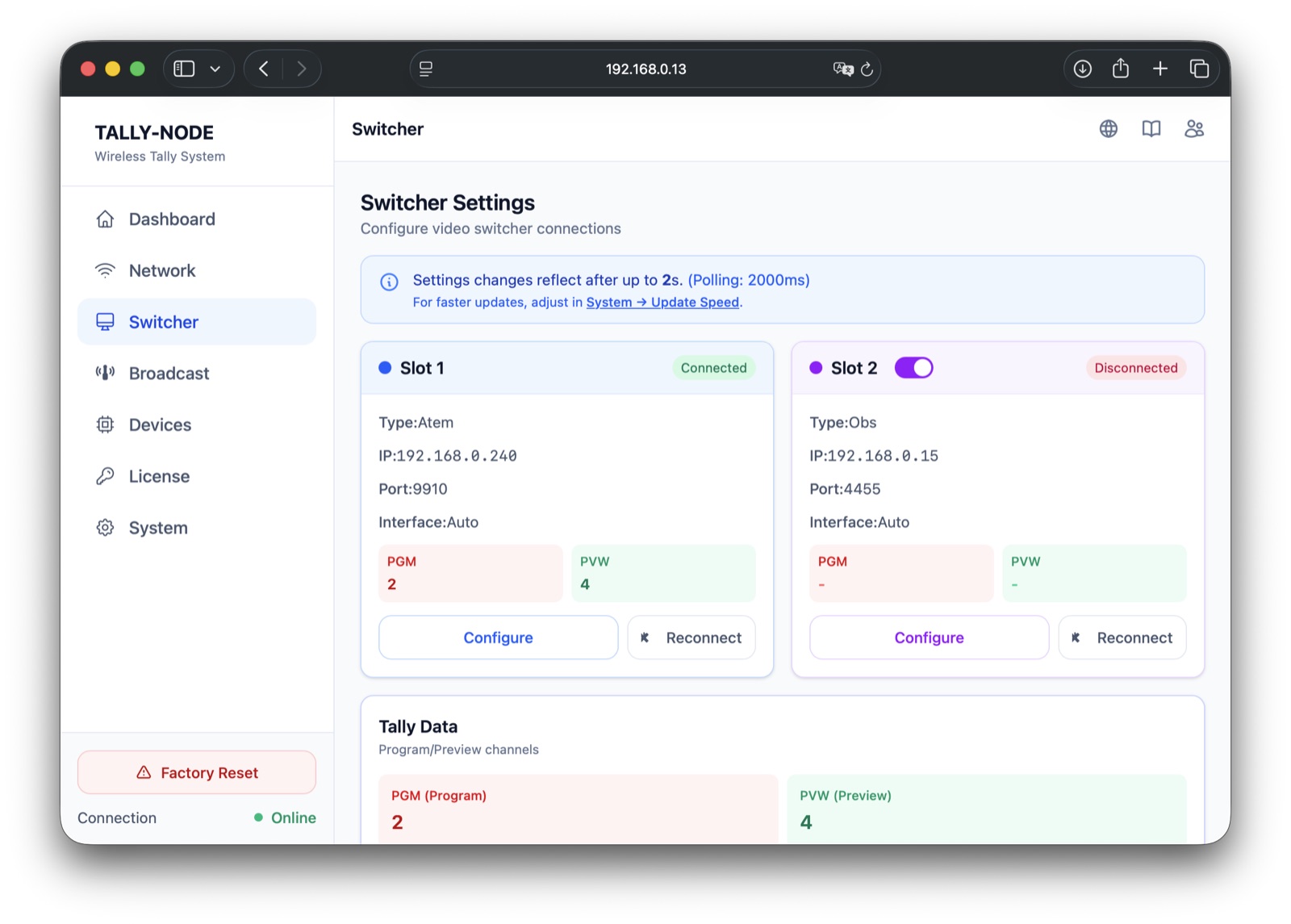
- 1Open ConfigureConfigure on the slot status card → settings modal opens
- 2Fill fieldsType, IP, Port (auto on type select), Password (OBS only), Max Channels → validation passes
- 3SaveSlot restarts immediately (no reboot) → status card refreshes on the next poll
- 4VerifyConnected badge (green) → PGM/PVW start updating
| Field | Input |
|---|---|
| Type | ATEM / OBS / VMIX / OSEE |
| Network Interface | Auto (default) / Ethernet / WiFi — locked to Auto on Free |
| IP Address | Dotted IPv4 only (no hostnames) |
| Port | Locked by default; unlocked 1-65535 |
| Password | Shown and sent for OBS only |
| Max Channels | 1-20, default 8 — match real input count |
Values that are rejected
Hostname IPs, out-of-range ports, unknown types, and choosing Ethernet on Free fail with an error toast.
- Interface: choose Ethernet only for a direct ATEM cable (see 04 · Network Connection). A forced interface must be up — with the link down the device holds instead of rerouting.
- Slot 2 toggles on its card (slot 1 is always active); turning it off clears its contribution.
Verifying and reconnecting#
- The badge and PGM/PVW refresh by polling — reflection can lag by up to one polling cycle.
- Reconnect restarts a slot manually; drops retry automatically with backoff (ATEM/vMix/OSEE 1→30s, OBS 5→60s).
OSEE (mind the direction)#
Only OSEE reverses the direction — the device opens a UDP port and waits.
- 1Configure the slotType OSEE, Port 52381 (listen port), Save → slot waits
- 2OSEE unitSet the tally destination to this device IP:52381 → unit starts sending
- 3VerifyConnected + Active on first packet → 15 silent seconds show Timed Out and clear to OFF (auto-recover on traffic)
Mapping and combining#
- 1Edit mappingAssign sources (slot + camera) to 20 positions → up to 4 per position, duplicates allowed
- 2Reset (optional)Restores the 1:1 default (position N → slot 1 camera N)
- 3Save MappingSaved → web, OLED, and receivers all show the same combined state
Receiver camera numbers are the mapping sources — see 11 · Managing Receivers or 12 · Receiver Operation.
- Slot shows Connected
- A PGM change on the switcher reflects on the dashboard and receivers
Connection symptoms: Troubleshooting · communication.
Next steps
Last modified —